
Pro in places
Take bookings from your page
Add what people can book, set the hours you are free, and let visitors pick a time without messaging you first.
Add something to book
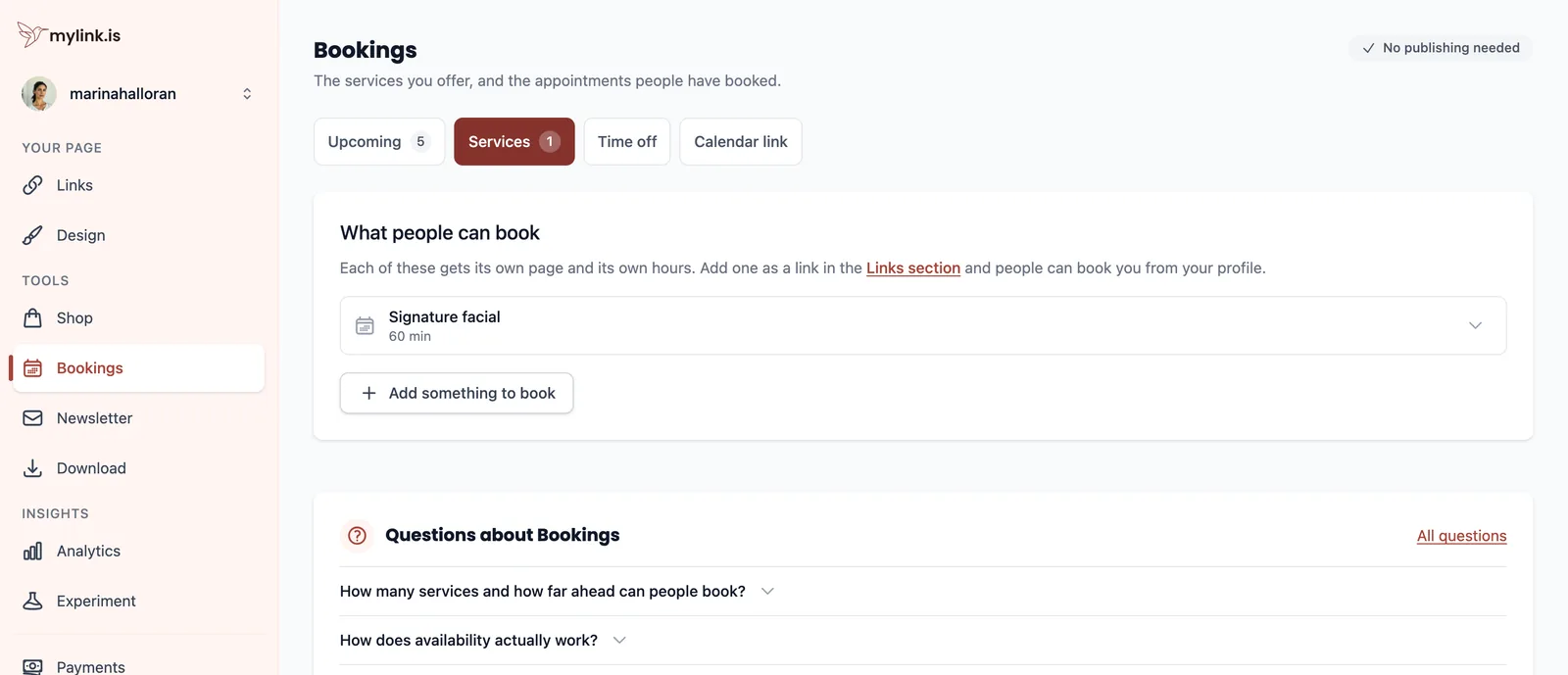
Open Bookings and press Add something to book. A service is one thing a person can book — a treatment, a call, a table, a class — and each one gets its own page and its own hours. You can hold up to 5 on a page.
The first choice inside is the one worth getting right: One at a time means a booking takes the whole slot, which is what an appointment or a call is. By capacity lets several bookings share a slot up to a limit you set, which is what a class, a tour or a table is.
Set the hours you are free
You set recurring weekly rules — the hours you are open on each day — and the calendar generates slots inside them. You are never placing individual slots by hand.
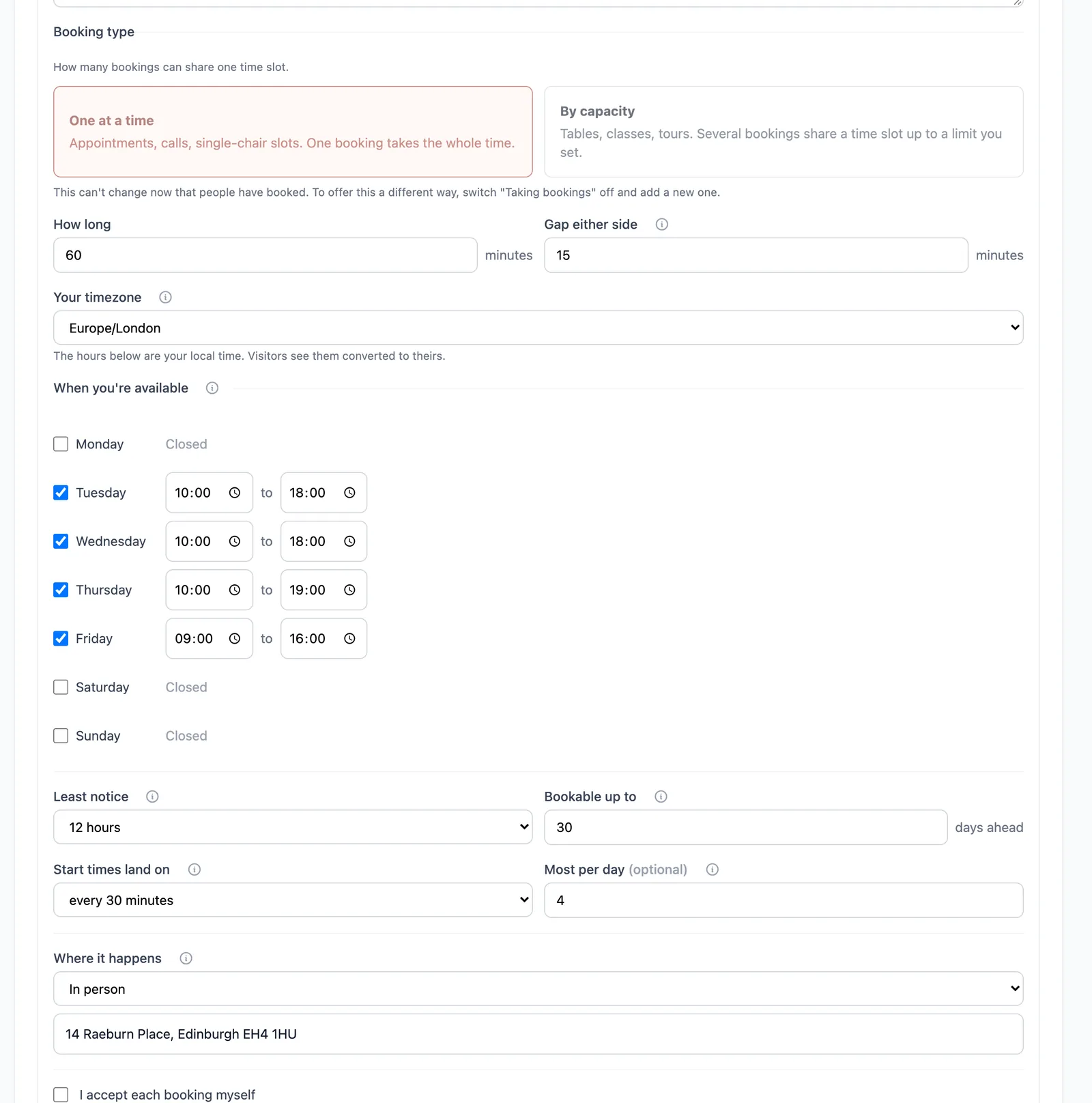
Four fields below the hours decide how bookable you really are. Least notice stops someone booking you for twenty minutes from now. Bookable up to caps how far ahead the calendar runs, up to 62 days — availability further out than you can honestly commit to is availability you will end up cancelling, and a cancellation costs more goodwill than a date you never offered. Start times land on keeps slots on a tidy clock. Most per day is the one that protects you from a good week.
Times you enter are in your own timezone, named in the field above the hours. Visitors see them converted to theirs, and both confirmation emails state the time explicitly rather than leaving it to be worked out — mismatched timezones are the most common way an appointment gets missed in any booking tool.
Put it on your page
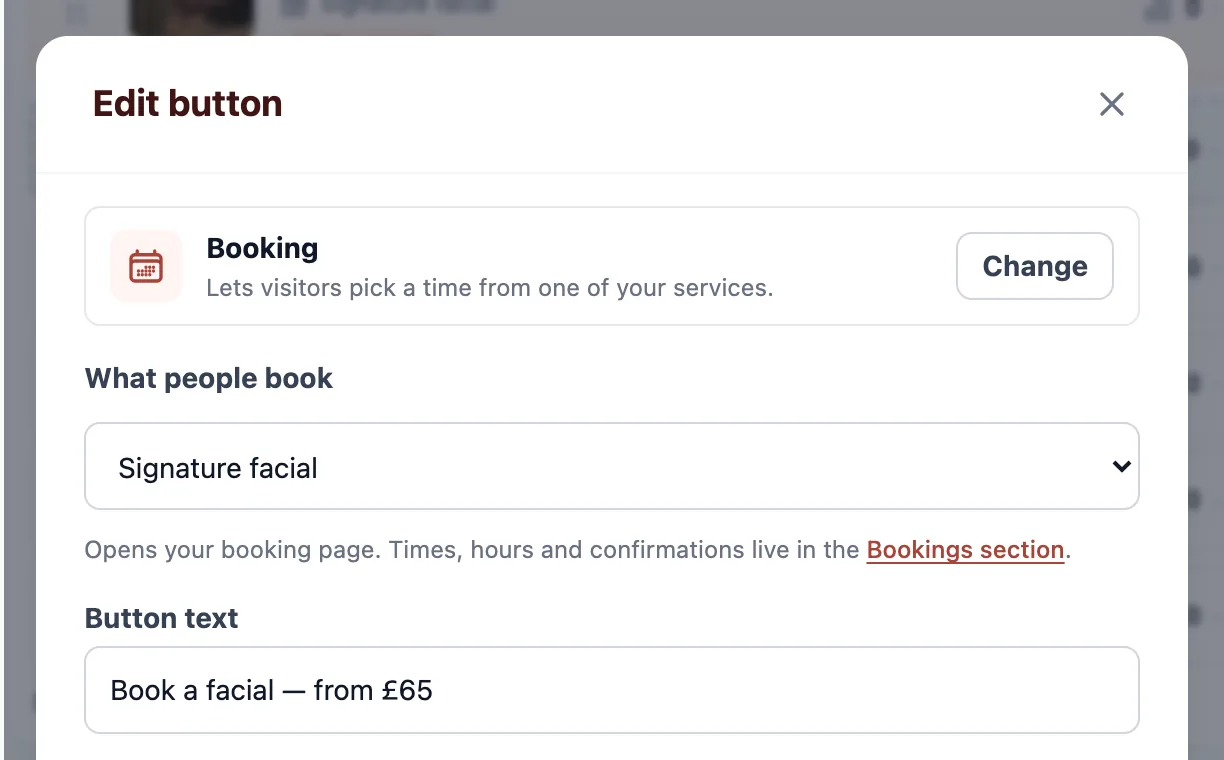
A service is not on your page until a link points at it. Go to Links, press Add to page, and pick Booking under Built on your page. Choose which service the row opens, and write button text that says what it is and what it costs.
If you would rather keep the tool you already use, a booking row can point at an external scheduling page instead. The trade is visibility: an external tool takes the visitor off your page and reports nothing back, so those appointments will not appear in your list or your funnel.
What happens when someone books
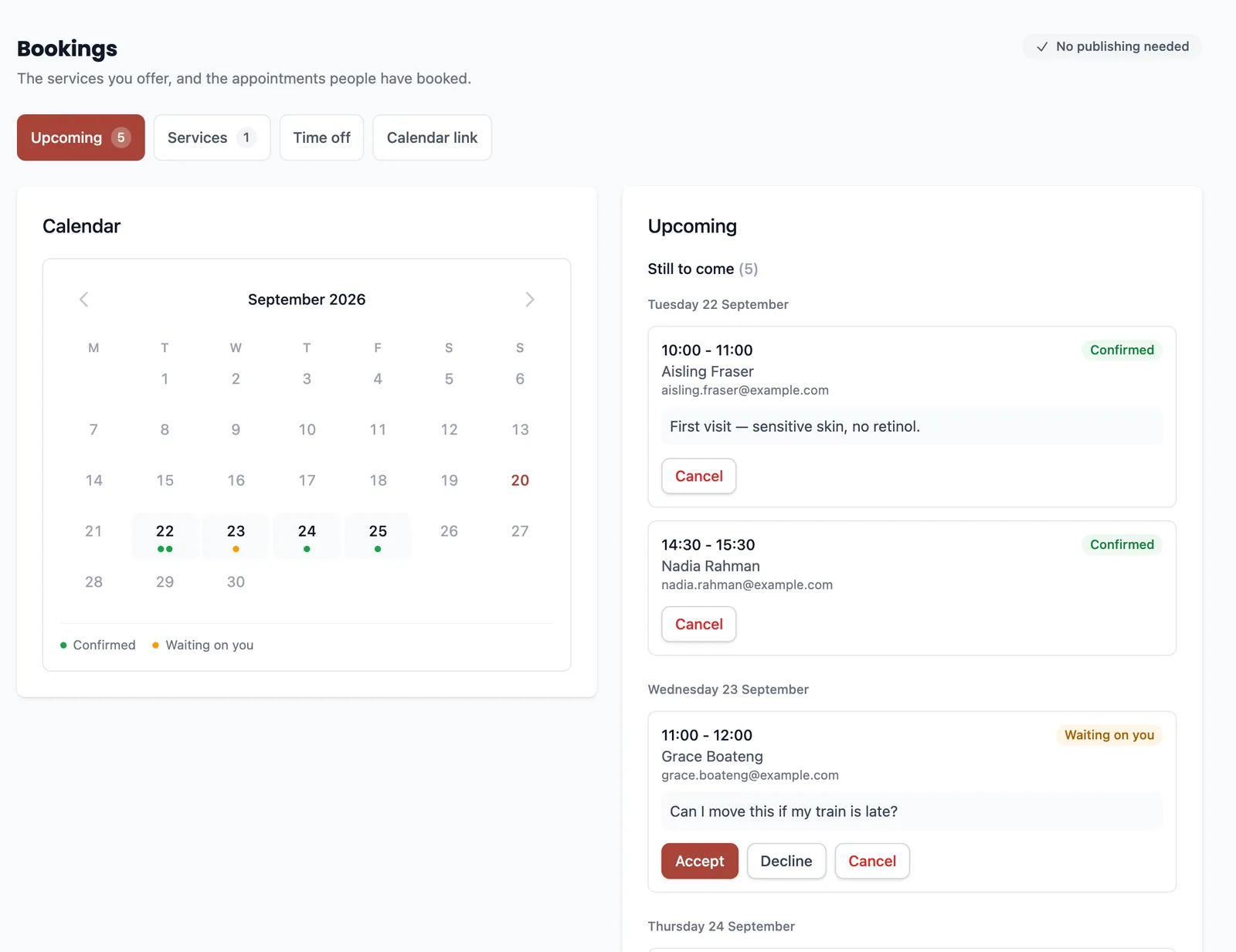
The visitor picks a slot, confirms their email, and the appointment appears under Upcoming. You are emailed; so are they. The slot is removed from the calendar the moment it is taken, so you never have to take one down by hand.
Whether anything is pending is your choice. Tick I accept each booking myself and every request waits for you; leave it clear and a confirmed email address books the time straight away. Turning off Taking bookings closes the page without deleting the service or anything already in the book.
Block out time off
Time off is the exception on top of your weekly rules: a holiday, an afternoon out, a single hour you need back. Give it a start, an end and optionally a note, and it blocks across everything you offer at once.
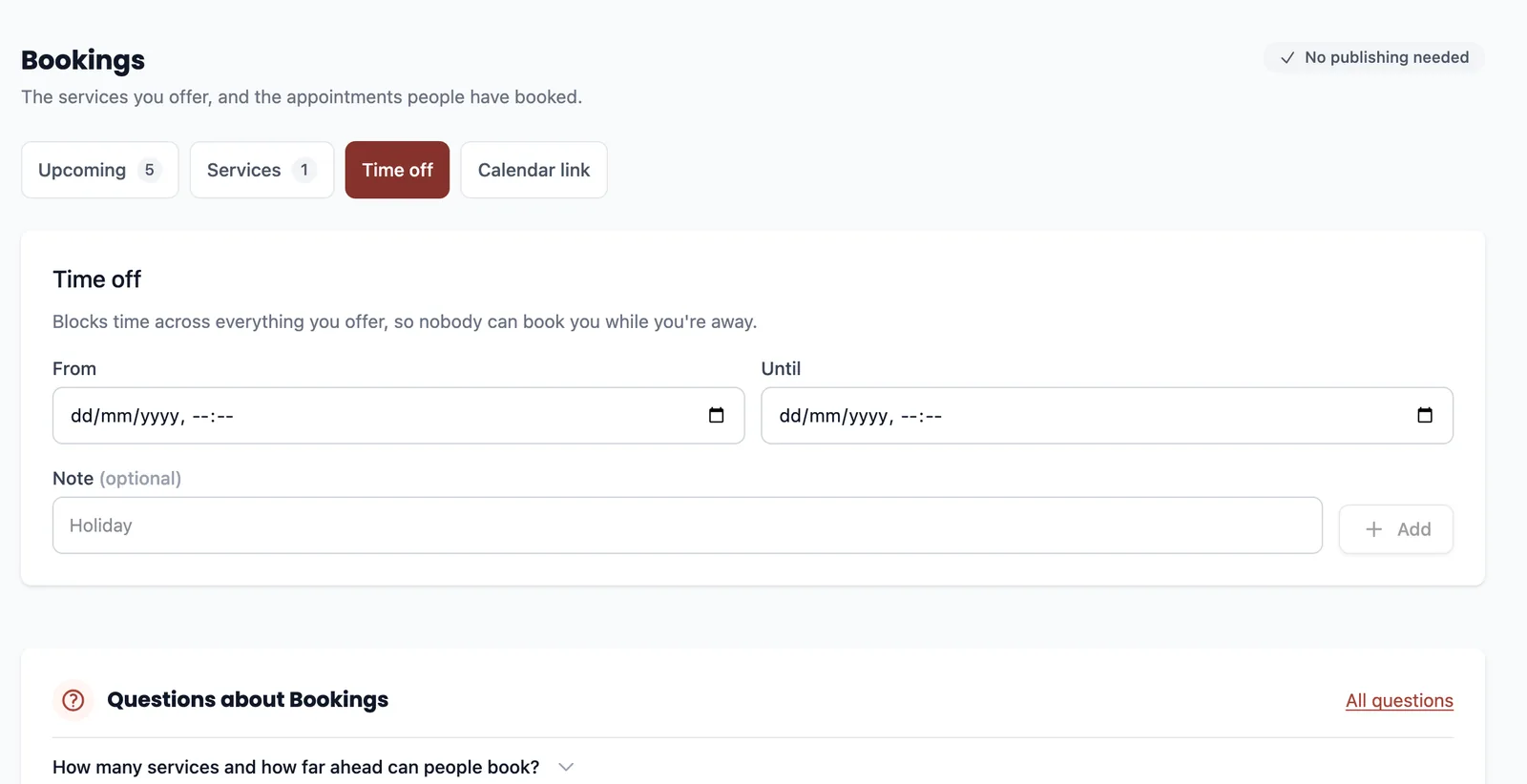
The Calendar link tab does the other direction: it gives you a feed URL to subscribe to from the calendar app you already live in, so appointments made here show up beside the rest of your week.
Charge for a booking
A booking row can carry a price, and the visitor goes through checkout as part of making the appointment rather than being invoiced afterwards. That turns a no-show from a cost into a decision they have already made.
The money goes straight to your own account. MyLink.is takes no cut — what you charge, less your payment provider's own fee, is what arrives.
Ready to try it?
Your page is free to build, publish and share. The paid corners of this guide are marked where they come up.