Pro in places
Add and arrange your links
What a link row can be, how to add one, and how the order on this screen becomes the order on your page.
What a row can be
A link row is not always a link. Four of the types just send the visitor somewhere — a web address, an email, a phone number, a WhatsApp chat. The rest either play on the page or open something we host for you.
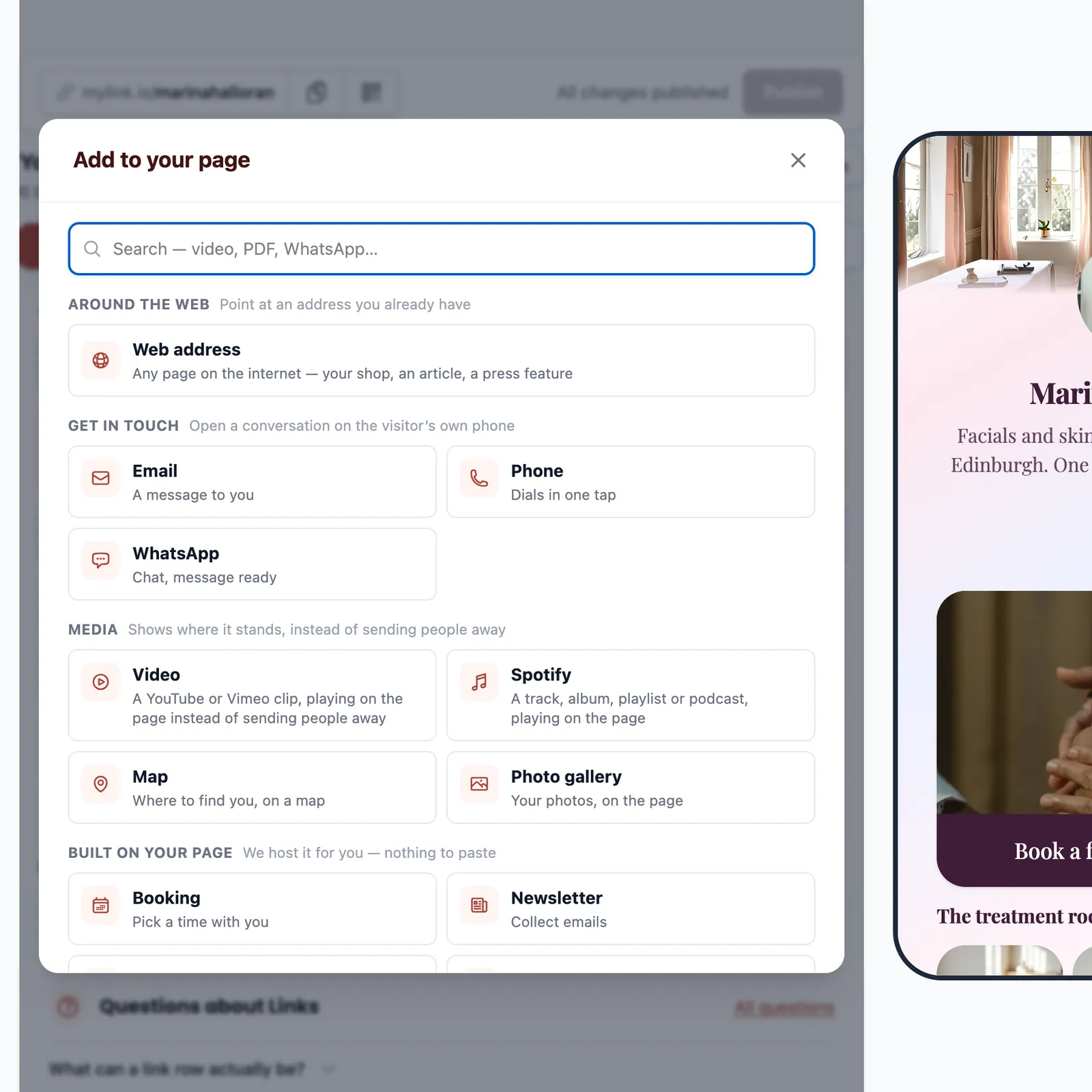
The groups are the decision, so they are worth reading once:
- Around the web — a plain web address. Your shop, an article, a press feature — anywhere that already exists.
- Get in touch — email, phone and WhatsApp. These open the app on the visitor's own device, already addressed to you.
- Media — a video, a Spotify track, a map or a photo gallery. These play or draw on the page instead of sending anyone away.
- Built on your page — a booking, a newsletter signup, a gated download or your shop shelf. We host the page behind each one.
The hosted four are the ones that change what the page is for: they turn a list of exits into somewhere a visitor can finish something. Each has its own section in the rail where the actual thing is set up — the row only decides where it sits on the page and what it says.
Add one
Pick a type and you get one form. The top half is what the row points at; the bottom half is how it behaves.
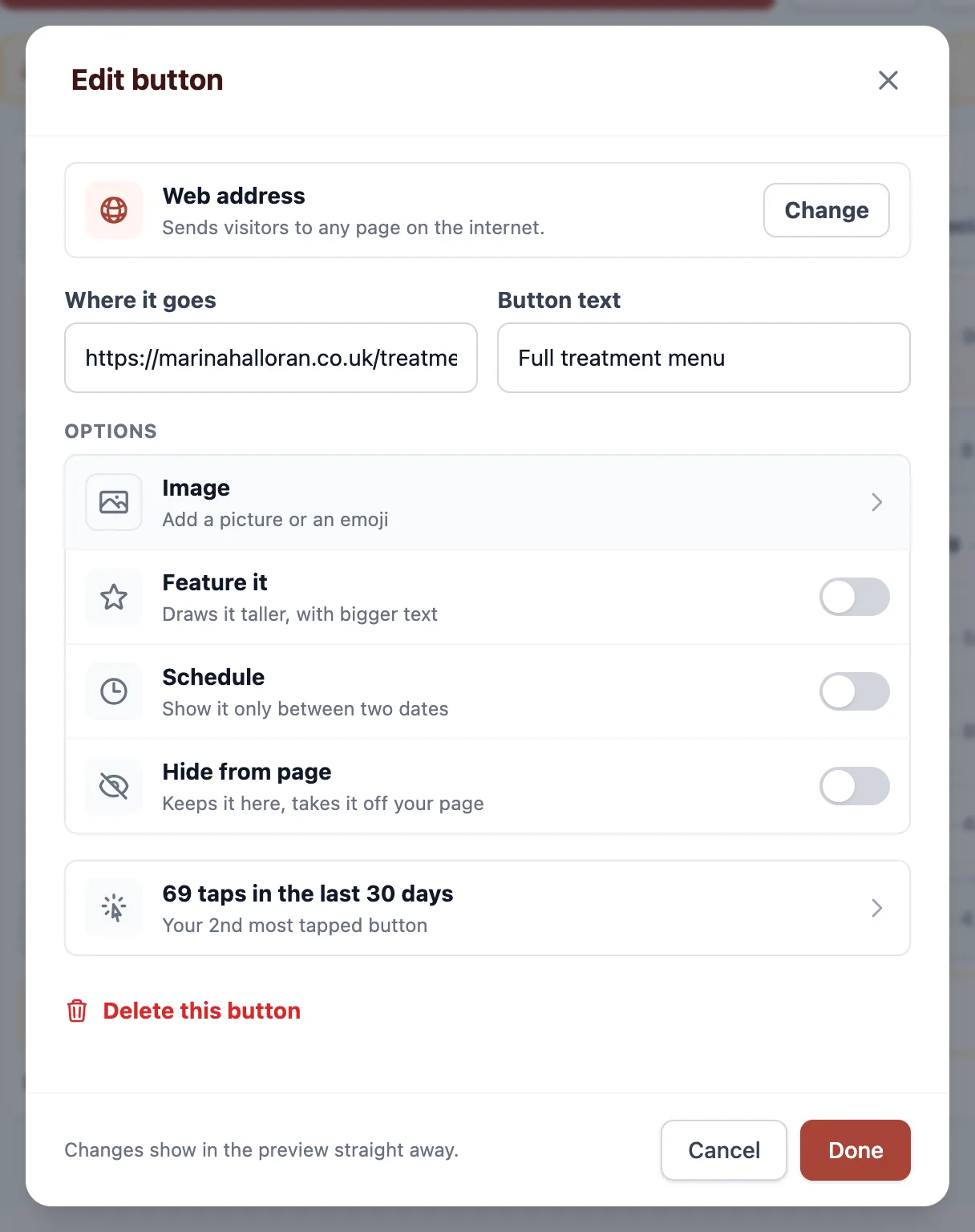
Changes show in the phone preview straight away, and they are still only in your working copy — nothing reaches the live page until you press Publish.
The order is the page order
The order on this screen is the order on your page, top to bottom, and it matters more than anything else in this guide. Attention falls off steeply down a link list: the row you most want clicked belongs first.
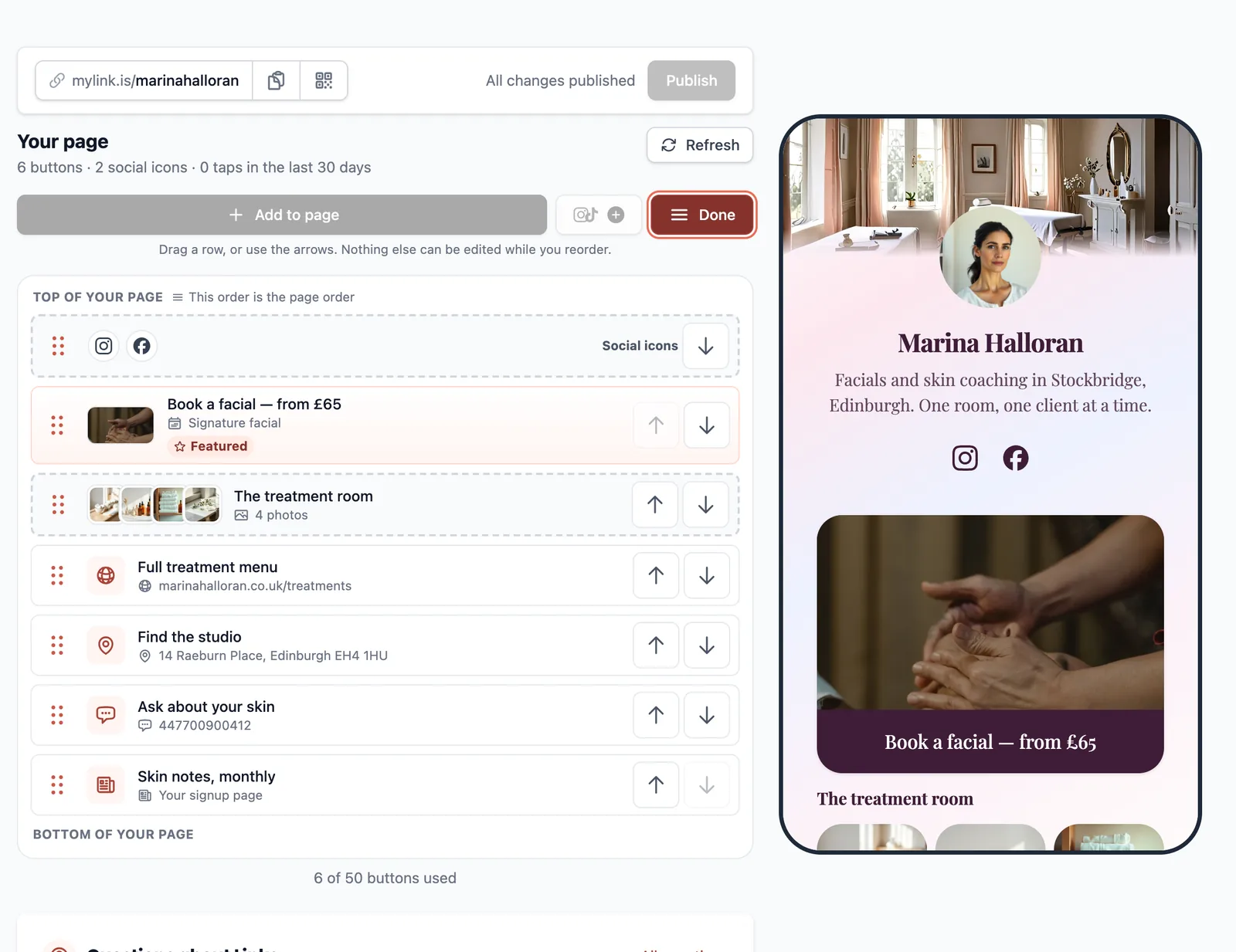
Once a page has been live for a while, each row carries its own tap count, which is the honest way to settle an argument about what should be at the top. Your social icons sit in their own row above everything, and that row does not move.
Feature the one that matters
Feature it draws a row taller and sets it in bigger type. Use it on one row. A page where three rows are emphasised is a page where none of them is, and the whole value of the switch is that the eye lands somewhere first.
The same rule governs thumbnails. An image gives a row weight, which is exactly what you want when the picture is the thing being chosen — a product, an episode, a person — and exactly what you lose when every row has one. If you want your rows to look alike, leave them all plain.
Let a row come and go on its own
Schedule gives a row a window: a start, an end, or both. Inside the window it is on the page; outside it, it is not. A launch that opens at midnight and an offer that closes on Sunday both stop being something you have to be awake for.
The window is read when the page is served, so it needs no publish of its own to take effect. Set it once and the row comes and goes without you.
Hide from page is the blunt version of the same idea, and the one to reach for more often than deleting: it keeps the row and everything set up on it, and takes it off the page until you put it back. A seasonal offer, a link you only want up during a launch, a row you are not finished writing.
The one switch above these two is Charge for it, which sits directly under the picture because it changes what the row is rather than when it shows. It is offered on two types — a booking and a gated download — because both are things you deliver.
Publish
Everything above is a draft until you press Publish. When you do, the cached copy of your page is cleared before the button returns, so the next visitor is served the new one — there is no waiting period to sit through.
If you still see the old page afterwards, it is almost always your own browser, or the in-app browser inside a social app, holding a copy we cannot reach. A private window shows you what a stranger gets.
Ready to try it?
Your page is free to build, publish and share. The paid corners of this guide are marked where they come up.