
Pro in places
Your address, and the parts not on the page
What lives outside the page itself: the address, extra profiles, and how to delete either one.
Your address
Settings holds the parts of a page that never appear on it. The first is the address itself.
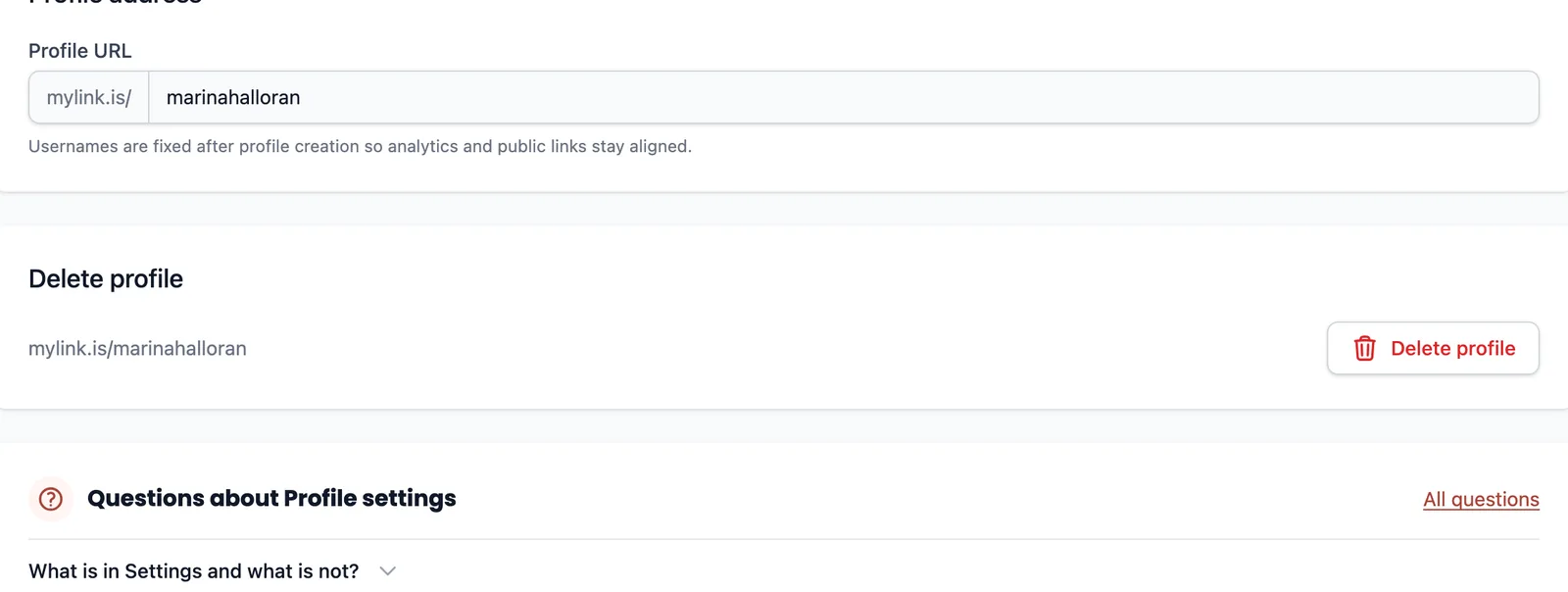
The address is what everything you own is filed under — every link already printed and pasted, and every number already recorded. Changing it would break the first and split the second across two names. If you need a different address, make a second page; the old one keeps working, so anything already pointing at it still arrives.
What is not here
Your name, your bio and your picture are not in Settings. They moved to Design, under the header, because that is where you can see what changing them does.
It is worth knowing so you do not go looking. A settings screen is where you expect to find a profile, and on this product a profile is a page.
Running more than one page
A free account has one page. On Pro you can run up to 10 of them, and each has its own address, links, design, appointment book, subscriber list and analytics. Nothing is shared between them except the login.
Switch between them from the menu at the top of the rail. Billing is per account rather than per page, so one subscription covers all of them — see Plan and billing.
Deleting a page
Deleting takes the page offline and takes its links, design, appointments, subscribers and analytics with it.
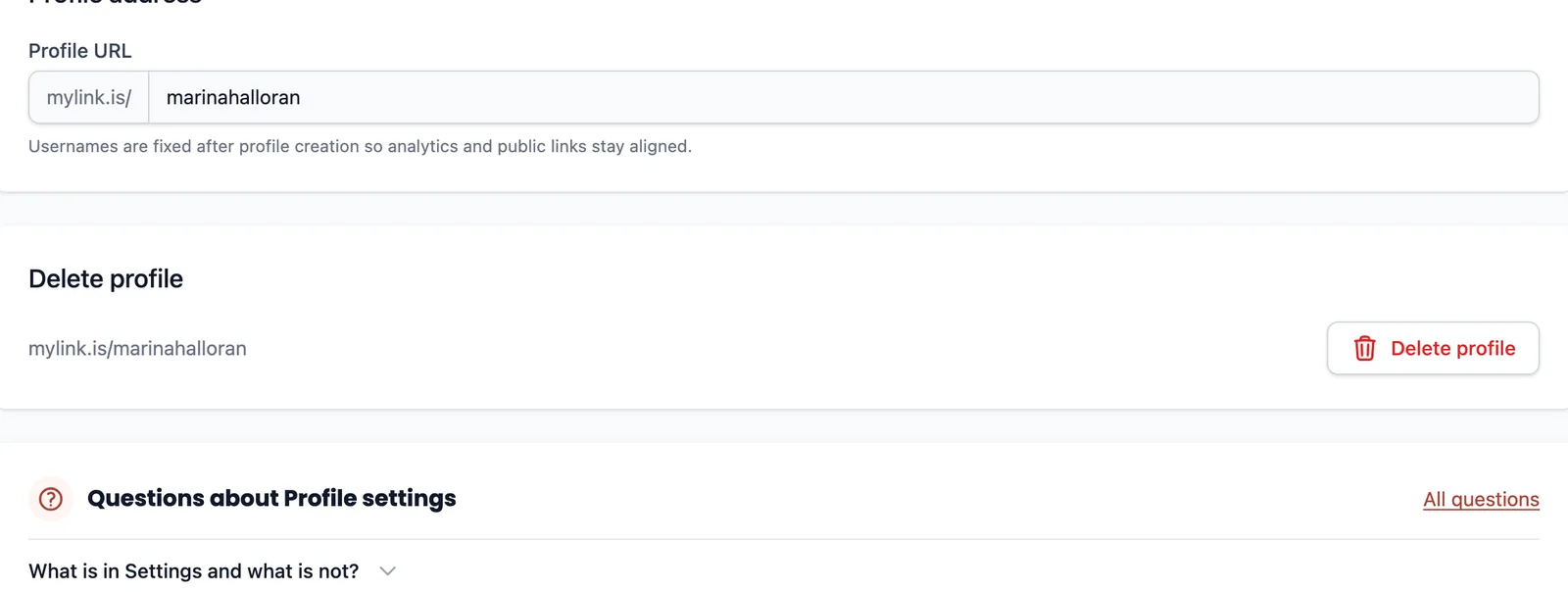
Export anything you want to keep first, particularly your subscriber and download lists — those are the two that represent people rather than settings, and the two you cannot rebuild.
The last page on an account cannot be deleted. An account with no page has nothing to sign in to, so the card is not offered.
Deleting the whole account
Ask support. It is a conversation rather than a button, because it is irreversible across every page at once and there is no undo to offer afterwards.
If you have a subscription, cancel it first so the deletion is not racing a renewal.
One thing that is not available: handing a page to somebody else as a transfer between accounts. A page belongs to the account that made it. If you built a page for a client, the practical route is for the account itself to change hands — change the login email and password to theirs. Everything the page has collected goes with it, so make sure that is what both sides intend.
Ready to try it?
Your page is free to build, publish and share. The paid corners of this guide are marked where they come up.